

How to Use Shopify Sidekick Integration in StoreFAQ?
StoreFAQ now works directly inside Shopify Sidekick, the AI assistant built into your Shopify admin. Instead of opening the app and clicking through screens, you can simply ask Sidekick a question in plain language and get an answer pulled straight from your StoreFAQ data.
With the Shopify Sidekick integration, you can review your FAQs and FAQ groups, check your FAQ page view usage, confirm which StoreFAQ features are switched on, look up your subscription status, update your helpdesk settings and navigate to the right StoreFAQ screen without breaking your workflow.
This guide explains what the integration does, how to activate StoreFAQ inside a Sidekick conversation and which prompts return the most useful results.
How to Use Shopify Sidekick with StoreFAQ?
Follow the step-by-step guide below to connect StoreFAQ to Sidekick and start working through prompts.
Step 1: Open Shopify Sidekick from Your Admin
Before you start, make sure you have the StoreFAQ app installed on your Shopify store and that Sidekick is available in your admin.
Open Sidekick from the Sidekick icon in the top bar of your Shopify admin. The assistant opens as a side panel next to whatever you are working on, so nothing you were doing gets interrupted.
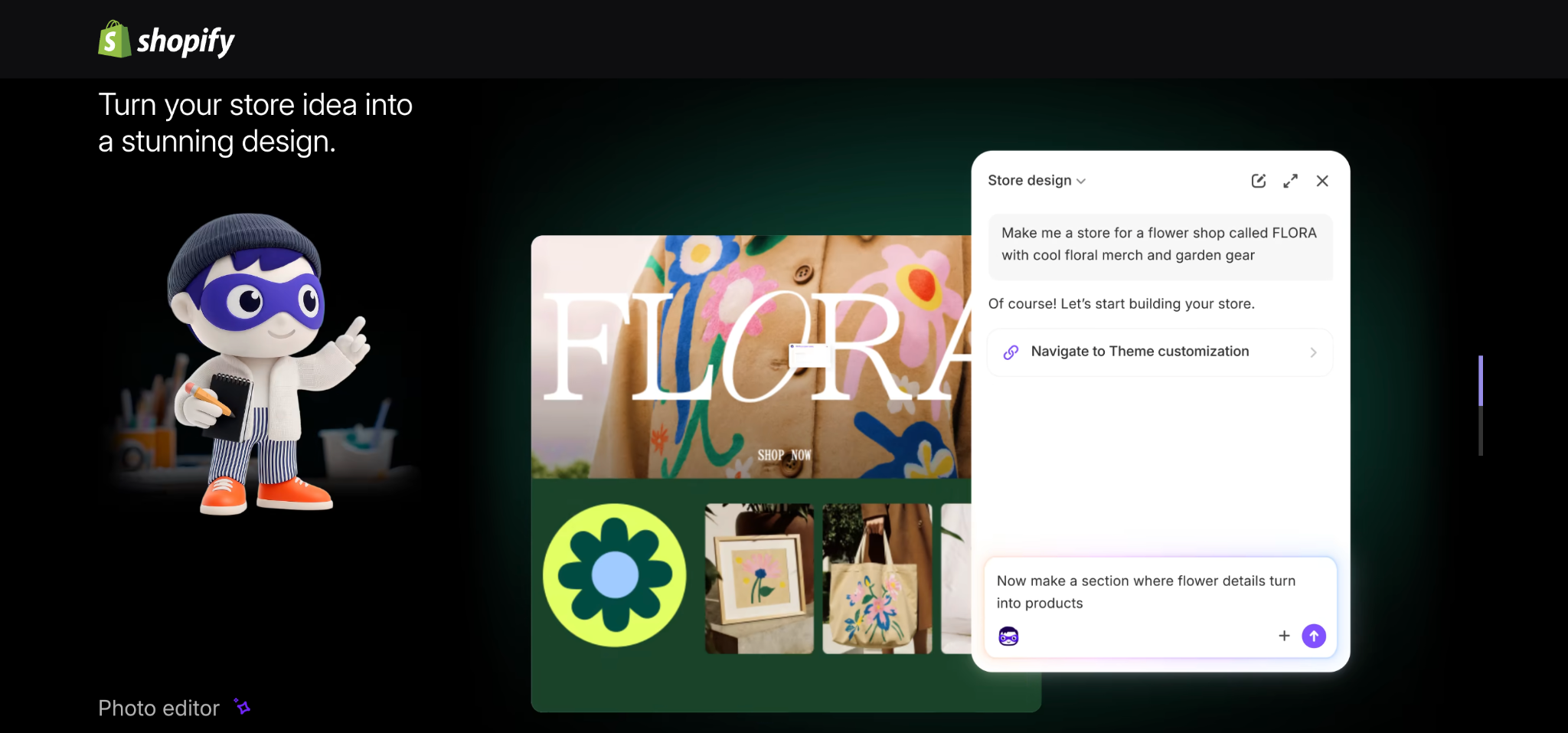
The panel header carries three controls:
- New chat: Starts a fresh conversation with a clean context.
- Expand: Opens Sidekick in a wider view, which is helpful for long answers and lists.
- Close: Hides the panel. Your conversations stay saved in the sidebar.
Note: Sidekick is Shopify’s native assistant and is included with your Shopify plan. Availability depends on your store’s region and plan, so if you do not see the icon, check with Shopify support first.
Step 2: Start a Conversation and Activate StoreFAQ
You can also start from the Home page of your admin. Type your question into the ask bar under What do you want to work on next? and press the arrow to send it.
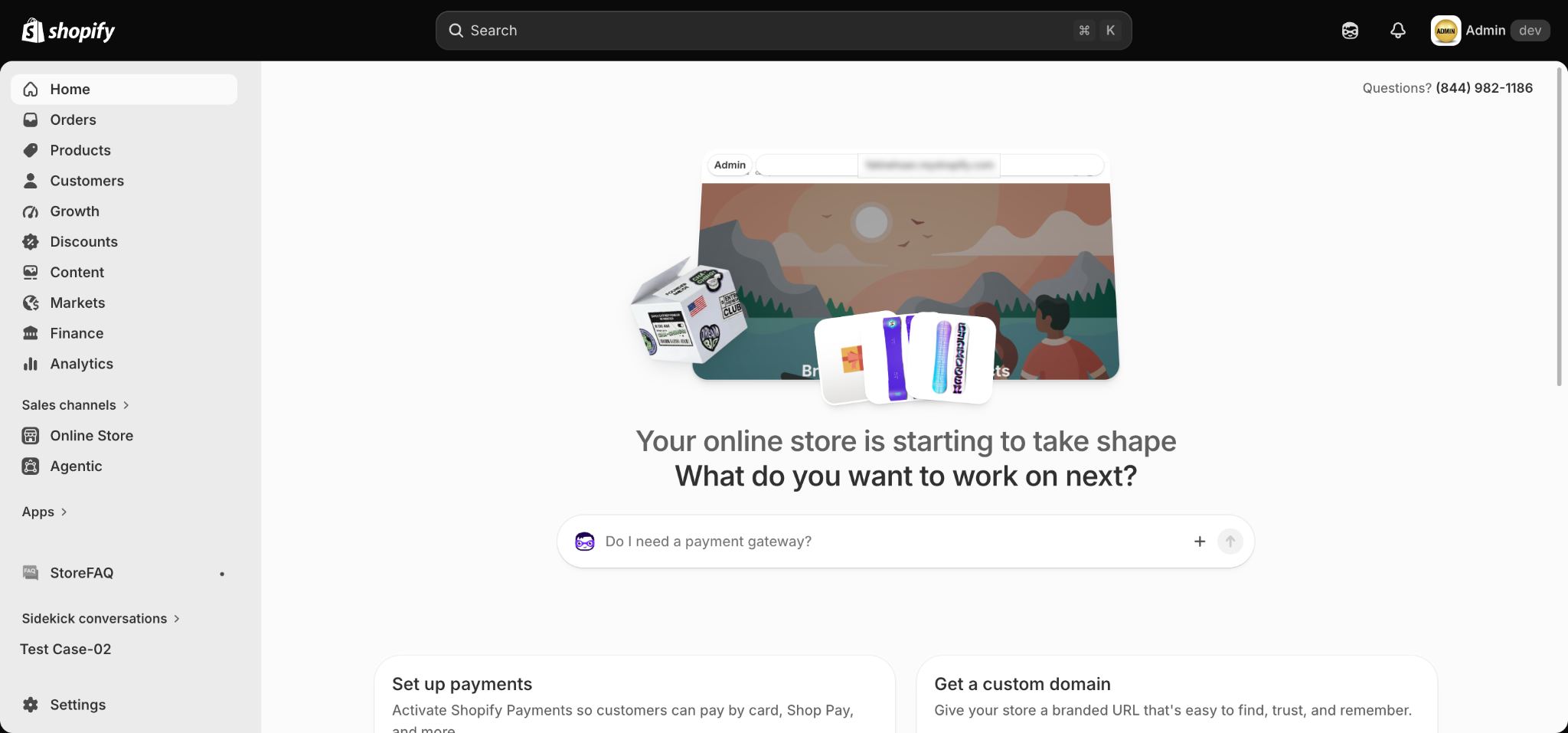
A few things worth noticing on this screen:
- StoreFAQ in the sidebar: The app sits in the left sidebar under the Apps section, so you can always open the full interface when you need it.
- Sidekick conversations: Saved chats are listed under Sidekick conversations. Click any of them to pick up where you left off.
- Approval prompt: The first time a question needs StoreFAQ, Sidekick asks for your permission to use the app. Approve it once and the access stays active for that conversation.
Step 3: View Your FAQs and FAQ Groups
Once StoreFAQ is active in the conversation, you can pull your FAQ structure without opening a single menu.
Ask something like:
“Show me the FAQ groups currently available in StoreFAQ.”
Sidekick calls StoreFAQ, shows a short steps completed indicator while it works, then returns the full list.
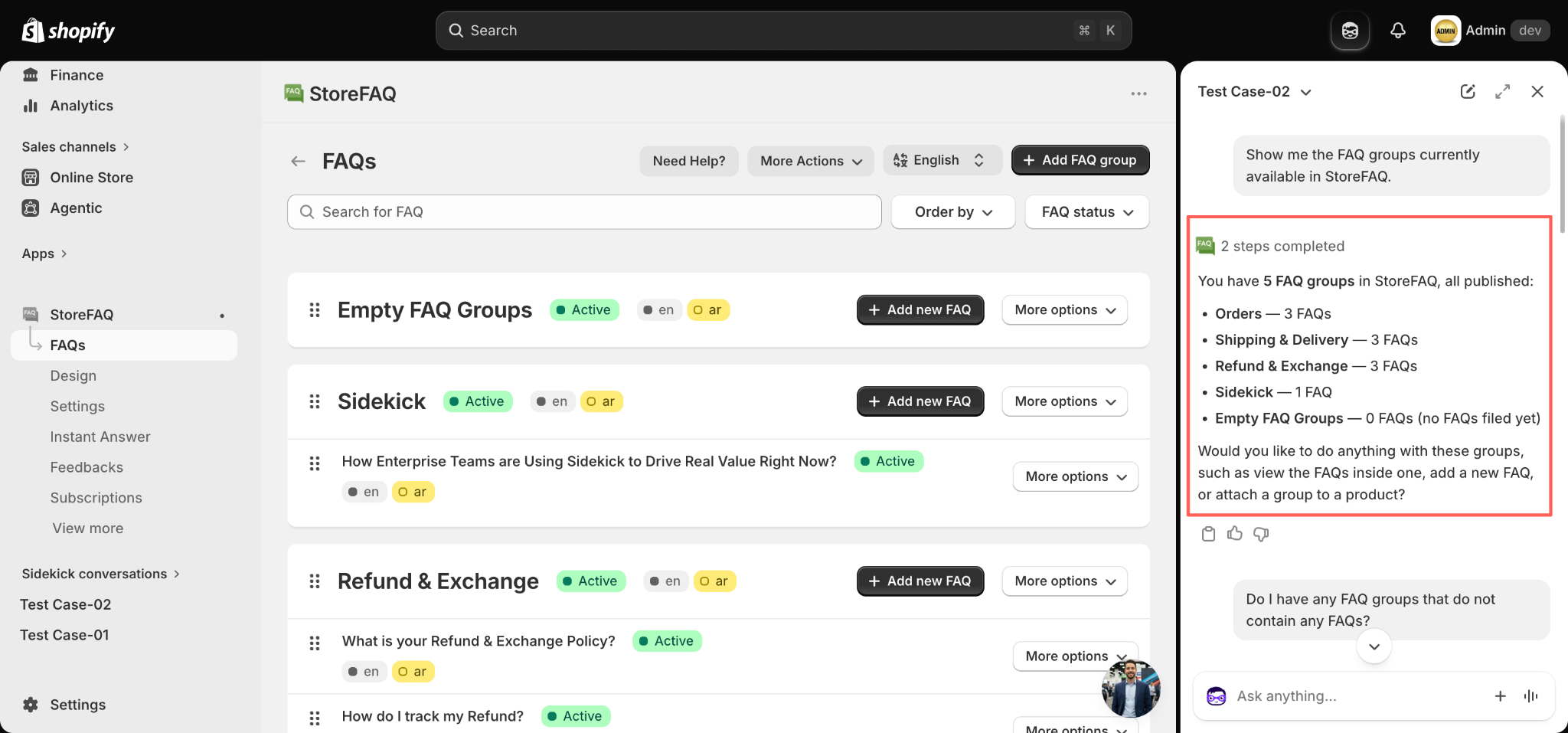
In the example above, the reply confirms five FAQ groups, notes that all of them are published and breaks down how many FAQs sit in each one, including the groups that are still empty. Sidekick then offers logical next steps such as viewing the FAQs inside a group, adding a new FAQ or attaching a group to a product.
Behind the panel you can see the same data in the StoreFAQ interface, so it is easy to verify an answer and act on it right away.
Step 4: Check Your StoreFAQ Subscription Status
Billing questions usually mean opening the Subscriptions page and comparing plan cards. Sidekick answers them in a sentence.
Ask something like:
“What is the status of my current subscription of StoreFAQ plan?”
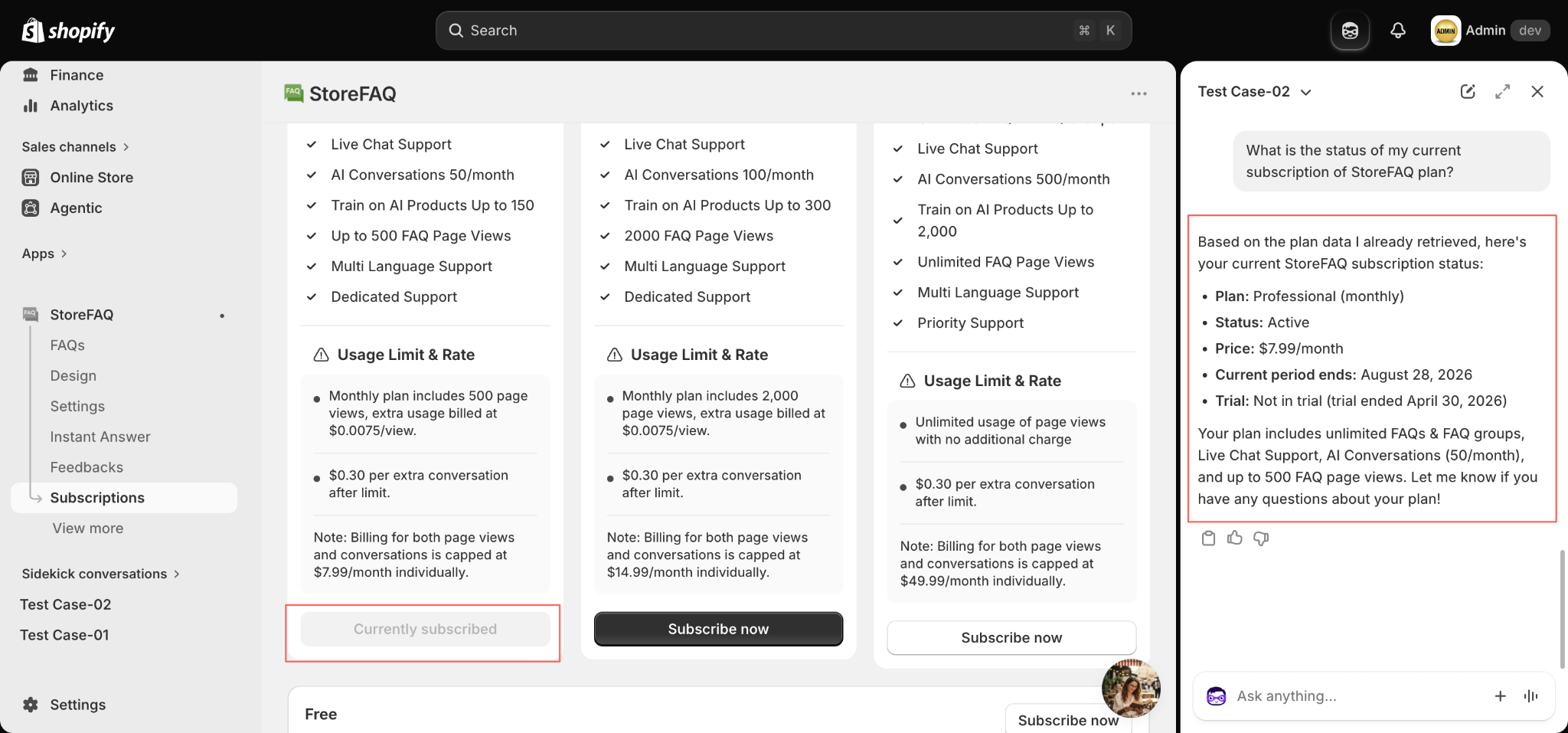
The reply covers everything you would otherwise scan for manually:
- Plan: The plan you are on and its billing cycle, for example Professional (monthly).
- Status: Whether the subscription is active, paused or cancelled.
- Price: The recurring amount you are charged.
- Current period ends: The date your plan renews.
- Trial: Whether you are still in a trial and when it ended.
Sidekick also summarises what the plan includes, such as unlimited FAQs and FAQ groups, Live Chat Support, your monthly AI conversation allowance and your FAQ page view limit. The matching plan card in StoreFAQ is highlighted as Currently subscribed, so the two views always agree.
Note: If you want to change plans, ask Sidekick to open the Subscriptions page. Plan upgrades are confirmed inside StoreFAQ so that billing changes always stay under your control.
Step 5: Check Feature Status and Usage
The integration is just as useful for quick configuration checks. You can confirm whether a feature is switched on and where to change it.
Ask something like:
"Is my store’s live chat enabled?”
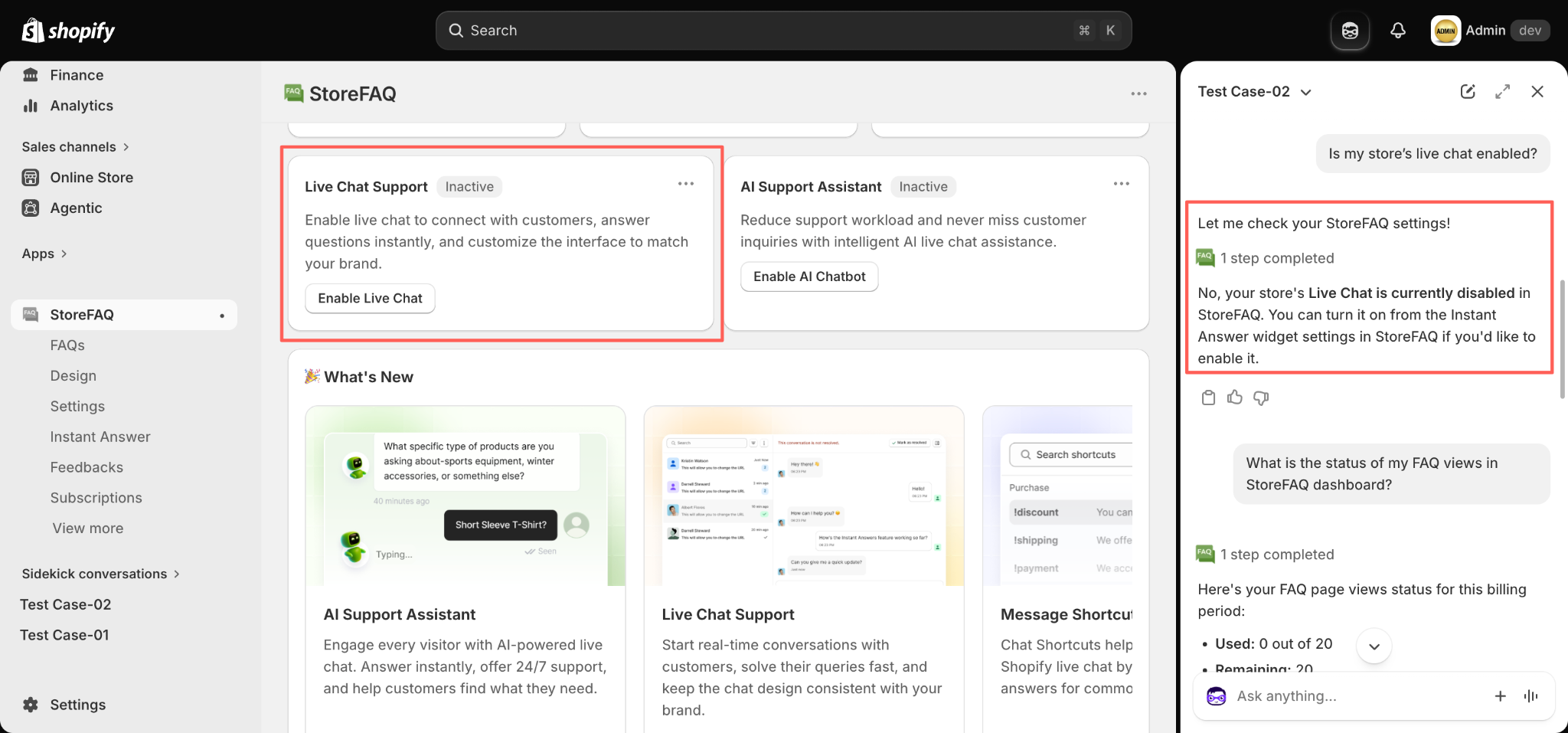
In the example, Sidekick checks your StoreFAQ settings and reports that Live Chat is currently disabled, then tells you exactly where to turn it on, which is the Instant Answer widget settings. The card behind the panel shows the same Inactive state with an Enable Live Chat button, so the fix is one click away.
You can chain a usage question straight after it:
“What is the status of my FAQ views in StoreFAQ dashboard?”
Sidekick returns your FAQ page views for the current billing period, broken into Used and Remaining, so you know how much of your allowance is left before extra usage is billed.
Troubleshooting
If the Sidekick integration does not behave as expected, check the possible causes below and fix them quickly.
StoreFAQ does not appear in Sidekick
Confirm that StoreFAQ is installed and visible under Apps in your Shopify admin sidebar. If the app was recently installed, refresh the admin, then start a new Sidekick conversation so the integration is picked up.
Sidekick did not ask for permission to use StoreFAQ
Mention the app by name in your prompt, for example “Using StoreFAQ, show me my FAQ groups”. That makes the intent explicit and triggers the approval request.
The answer looks out of date
Sidekick answers from the data it retrieved during the conversation. If you edited FAQs or changed a setting after asking, send the question again so it fetches fresh values.
Sidekick cannot complete an action
Some changes, such as plan upgrades or design edits, are confirmed inside StoreFAQ by design. Ask Sidekick to open the relevant screen, then finish the change in the app.
A feature status looks wrong:
Open StoreFAQ → Settings and confirm the toggle state, then click Save. Unsaved changes are not reflected in Sidekick because they have not been applied to your store yet.
That’s it. This is how you can use the Shopify Sidekick integration in StoreFAQ to manage your FAQs, monitor usage and check your setup without leaving the Shopify admin.
Need assistance? Feel free to reach out to our dedicated support team for any queries.
Updated on August 23, 2026


